Shortcuts and context menu
Ziman translates only when you ask it to. It does not show a button, card, or popup when you merely click a page or select text.
Context menu
- Select text on a page.
- Right-click the selection.
- Open Translate with Ziman.
- Choose a target language, or last used.
The five targets are Kurdish (Sorani), Kurdish (Kurmanji), English, Persian, and Arabic. The last-used entry repeats the language you chose most recently, or the default target from Settings if you have not chosen one yet.
Keyboard shortcuts
| Shortcut | Action |
|---|---|
Alt+Shift+Z |
Translate the current selection. If nothing is selected, the toolbar popup opens. |
Alt+Shift+X |
Cycle the target language: Sorani, Kurmanji, English, Persian, Arabic. |
Both suggestions can be changed at chrome://extensions/shortcuts. On some keyboards another extension may already use the same combination; set a different one there.
The Keyboard shortcuts button in Settings opens that Chrome page.
Result card
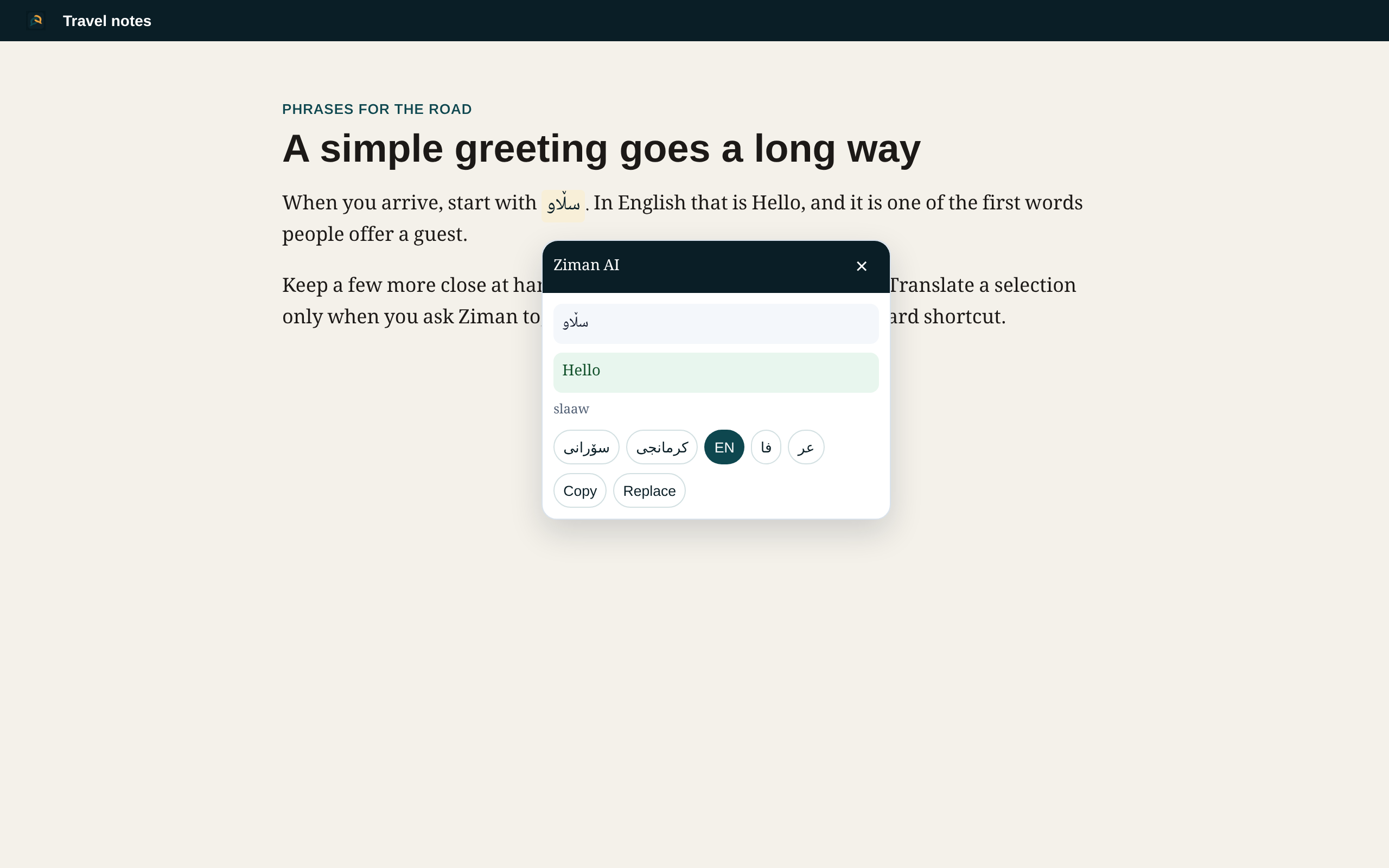
By default the translation appears in a small card next to the selection. You can copy the result or replace the selected text. The card closes when you:
- press Escape,
- click outside the card, or
- scroll the page.
In Settings, Selection result can be set to Open the popup instead of the card.
Toolbar popup
The toolbar icon still opens the full translator: type or paste text, use the current selection, browse the phrasebook, and review history or saved phrases. A Page excerpt action, used only after you click it, reads the page title and a short stretch of visible text (about 1,000 characters), not the whole document.